List a property with photos using Realty of India in ChatGPT
An owner's message. A project brochure. Notes from a site visit. Start with the information you have, complete the missing details, then add the property photos. You review the listing before it goes public.
Set up your listing conversation
Open Realty of India, then use the account under which you want to post.
-
Open and install Realty of India
Use the button above, or open Plugins in ChatGPT and search for "Realty of India". Look for "Find and post properties". Choose the install (+) control and follow the prompts. Already installed? Choose "Try in chat".
In ChatGPT 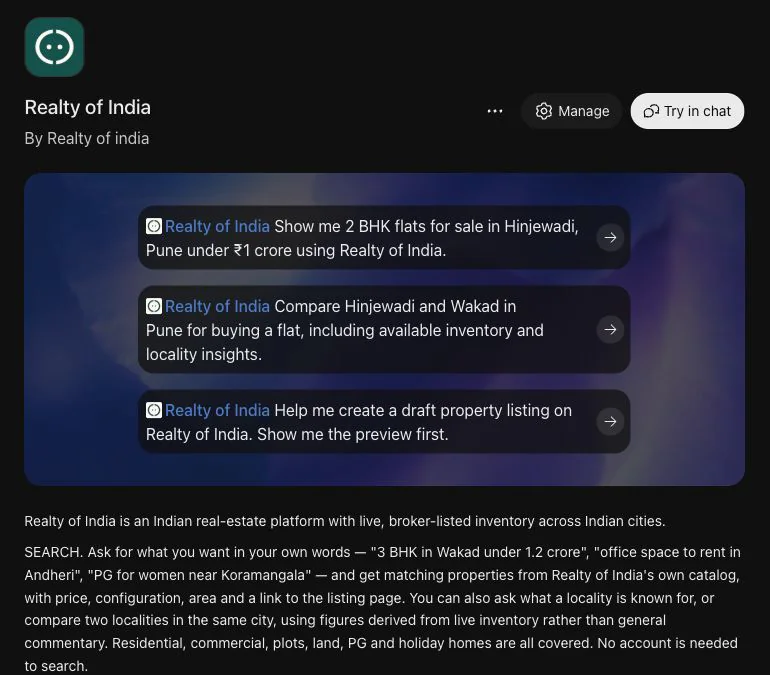
This account already has the plugin installed, so "Manage" and "Try in chat" are shown. First-time users choose the install (+) control and follow the prompts.
Open the full screen — Open and install Realty of India -
Start with Realty of India selected
"Try in chat" opens a conversation with Realty of India selected. You can also select it using @ or begin with "Use Realty of India". To post, sign in to Realty of India and approve the connection when asked. Published listings appear publicly under the signed-in user's name.
In ChatGPT 
Select Realty of India for the conversation in which you will prepare the property listing.
Open the full screen — Start with Realty of India selectedPromptUse Realty of India to help me prepare a property listing with photos. Keep it as a draft until I have reviewed the preview and confirmed publication.
Choose one way to start
The next three methods are alternatives. Use the one that matches your information, then continue to step 6. You do not need to complete all three.
-
Option A · WhatsApp message
Paste the owner's property message
Copy the owner's property message yourself and paste it into the chat with your instruction above it. Save the property photos from WhatsApp and upload those separately later. Answer follow-up questions instead of filling gaps with guesses.
- Copy and paste the message for one property; Realty of India does not automatically read your WhatsApp.
- State whether it is for sale or rent.
- Ask for a draft and the missing information. Save the property photos for the photo-upload steps.
In ChatGPT 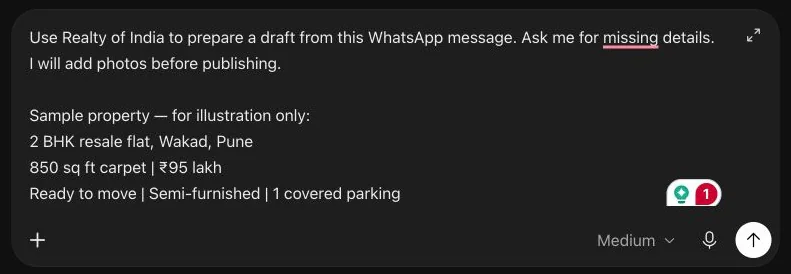
Example message in the composer, before sending. Paste the property details with an instruction to prepare a draft.
Open the full screen — Paste the owner's property messageIllustrative property details—replace with your confirmed information. 2 BHK resale flat, Wakad, Pune. 850 sq ft carpet. ₹95 lakh. Ready to move. Semi-furnished. 1 covered parking space.
PromptUse Realty of India to prepare a draft from the property message below. Ask me for missing details. I will upload the photos next. Do not publish yet.
When this happens An owner has sent a ready resale or rental property on WhatsApp. For a rental, confirm the monthly rent, deposit and maintenance separately.
-
Option B · Brochure
Upload the brochure and identify the exact unit
Choose "Add photos & files" in ChatGPT and upload the brochure PDF. Specify the exact unit or configuration you want to list. A brochure can describe several options; its "starting from" price may not be the price of your unit.
- Upload the brochure PDF, then identify the exact unit or configuration.
- Confirm that unit's area type, area, availability and quoted price.
- State what the price includes and any charges still to be confirmed.
In ChatGPT 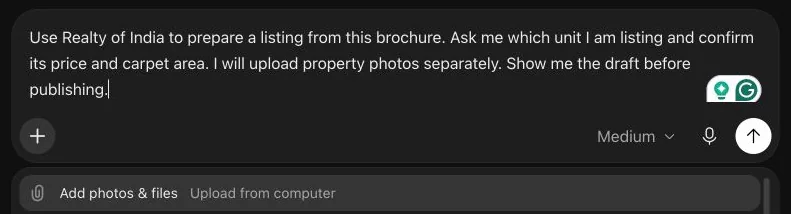
Choose + → Add photos & files, then attach the brochure PDF. The menu is shown before upload.
Open the full screen — Upload the brochure and identify the exact unitIllustrative property details—replace with your confirmed information. Use unit B-703: 2 BHK, 780 sq ft carpet. Confirmed base price ₹1.08 crore. The brochure's "from ₹89 lakh" price is for a different option. Taxes and other charges still need confirmation.
PromptUse this brochure to prepare a Realty of India draft for the unit I specify. Do not substitute the project's starting price for this unit's price. Ask me to confirm anything unclear. I will upload the property photos separately. Do not publish yet.
When this happens You are listing a specific primary-market unit. The PDF supplies information; it does not count as the listing's property-photo upload.
-
Option C · Spoken details
Dictate your site-visit notes, then check the text
Tap Dictate, the microphone icon in the ChatGPT composer, and speak the property details. Review and edit the transcribed text, then send it in the Realty of India conversation. If Dictate is unavailable in your interface, type the same details.
- Say the city, locality, sale or rent, configuration, price and area.
- Check numbers, place names and units in the transcript.
- Send the corrected text and ask for a draft; upload photos next.
In ChatGPT 
Dictate is the microphone icon, shown here before recording. Tap it, speak your details, then check the text before sending. The separate white button to its right opens Voice.
Open the full screen — Dictate your site-visit notes, then check the textIllustrative property details—replace with your confirmed information. Realty of India mein rental listing ka draft banana hai. City Pune, locality Hinjewadi. 2 BHK, 750 sq ft carpet, semi-furnished. Rent ₹30,000 per month, deposit ₹90,000. Maintenance confirm karna hai. 1 covered parking hai. Photos abhi upload karunga. Pehle preview dikhana, publish mat karna.
When this happens You have just finished a site visit and want to turn spoken notes into a draft. If dictation is unavailable, type or paste the same details.
Use Dictate to enter editable text. The separate Voice button starts a live voice conversation; that is not the workflow shown here.
Complete and check the property details
All three starting methods continue here. Keep the conversation focused on the same property.
-
Answer the missing-detail questions
Ask what is missing. Supply the city and locality separately; locality means the neighbourhood, not a complete street address. Confirm sale or rent, property type, configuration and the other fields requested. If you do not know a fact, get it confirmed before publication.
PromptShow me the details captured for this draft and the information still needed. Do not assume any missing facts.
-
Check the price, area and availability
Verify the sale price or monthly rent, the area type and unit, furnishing, parking and possession or availability. For rentals, check deposit and maintenance. For brochure-based listings, confirm the chosen unit's figures rather than another configuration's figures.
When this happens An owner's message says "area" without saying carpet or built-up, or a brochure gives more than one price.
Add the property photos to the draft
Uploading images into ChatGPT and adding them to the ROI draft are separate actions. Complete both, then check the preview.
-
Choose the photos and main image
Use actual photos of the property being listed, in JPEG, PNG or WebP format, that you have permission to publish. Choose the strongest clear property photo first: the first photo in the draft's image order becomes the main listing image. Keep photos from other properties out of this set.
When this happens A brochure PDF is not a property-photo attachment. Upload the property images separately.
-
Upload the photos into ChatGPT
Use the attachment control in the same conversation to upload your selected property images. For a new photo set, put the intended main image first. Wait until the attachments are ready, and check that you selected the right files.
In ChatGPT 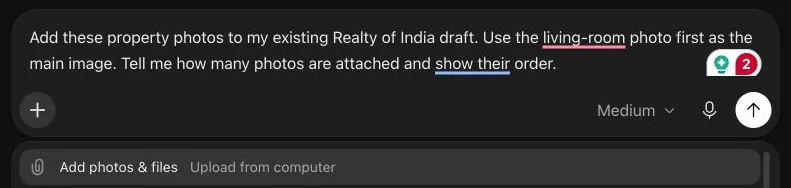
Choose + → Add photos & files, then attach the property images. The menu is shown before upload. After attaching the files, ask Realty of India to add them to the draft.
Open the full screen — Upload the photos into ChatGPT -
Tell Realty of India to add them to this draft
After uploading, explicitly ask for the attached images to be added to the property's ROI draft. Identify the property if the conversation includes more than one. Verify the photo count and any reported filenames or order. An attachment visible in the chat is not, by itself, confirmation that it has been added to the listing.
PromptAdd these uploaded photos to this property's Realty of India draft. Confirm the photo count and reported filenames or order, including which image is first. Show the updated listing preview. Do not publish yet.
-
Be clear when adding or replacing photos
To keep the current photos and include more, say "add"; the new photos append to the existing set. To replace the whole set, say "replace", upload the complete intended set and put the main image first. Check the updated preview after either change.
Add more photosAdd these new photos to this draft and keep the existing photos. Confirm the updated photo count and reported filenames or order, then show the listing preview.
Replace the photo setReplace this draft's existing photos with this complete uploaded set, with the first image as the main photo. Confirm the photo count and reported filenames or order, then show the listing preview before publishing.
When this happens The owner sends extra photos later, or you discover that the wrong property's photos were attached.
Review the listing, then publish
Use the actual listing preview returned by Realty of India as your final check.
-
Check the details and photo attachments
Request the actual listing preview. Check the title, city, locality, price, area type, description and property facts. Verify the photo count and any reported filenames or order; the first image in the draft order becomes the main image. If thumbnails are displayed, check that they belong to this property. Ask for clarification if the attachment information is incomplete.
PromptShow this draft's actual Realty of India listing preview. Confirm the photo count and reported filenames or order, including the first image that will be the main photo. I want to check the details and attachments before publishing.
-
Correct the draft and review it again
State the exact field and replacement value, or explain the photo change. Ask for an updated preview. Review that latest version before giving publication approval.
PromptUpdate the fields I specify below in this draft. Keep the other confirmed details. Show the revised preview before publishing.
-
Explicitly confirm publication
Once the final preview is correct, send a clear publication instruction. The listing will be public under the signed-in user's name. A request to prepare a draft is not the final publication instruction.
PromptI have reviewed this listing's final preview, details and photo attachments. Publish this listing on Realty of India.
-
Open the published listing link
Wait for the publication result. Open the returned Realty of India link and check the live details, main image and photo gallery. If publication is not confirmed, keep the draft and resolve the message shown before treating the property as live.
On Realty of India 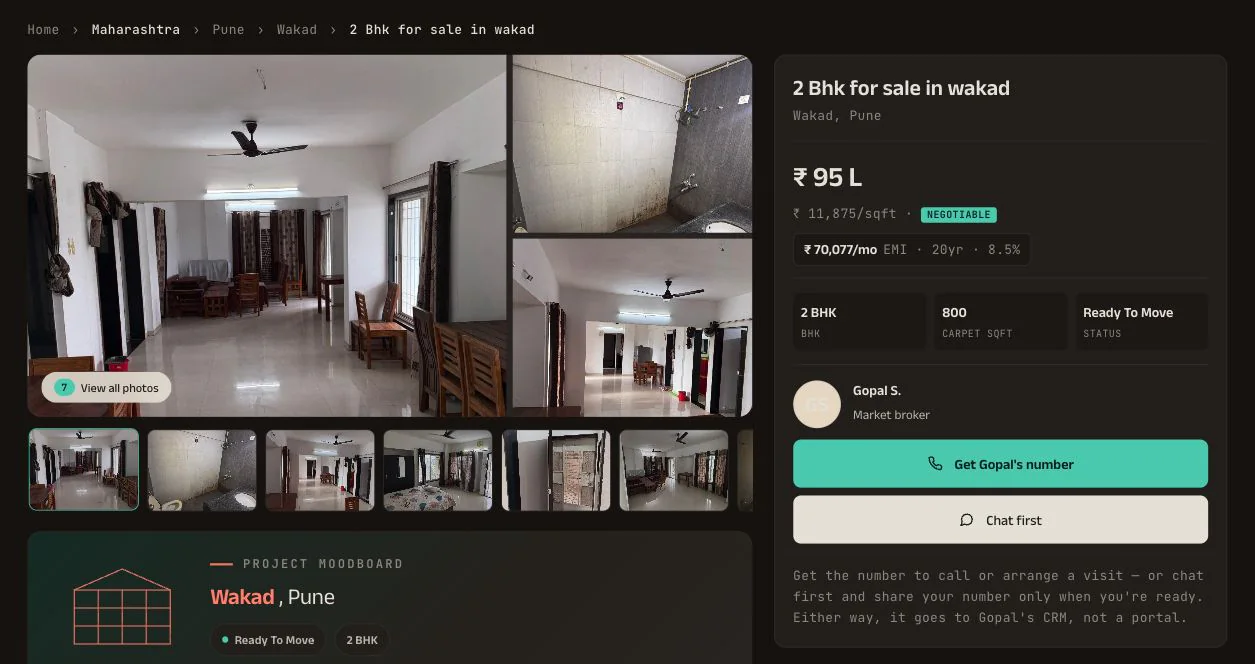
Example of a public ROI listing. After publishing, check your own listing's details and photo gallery.
Open the full screen — Open the published listing link
Also useful: search for a client's requirement
Searching is available without a Realty of India account. Results depend on current ROI inventory.
-
Give the requirement, then refine the results
State buy or rent, city, locality, configuration and budget. For rentals, give a monthly budget. Ask about a promising result, then open its ROI listing link to use the enquiry options. If there are no matches, change one requirement at a time.
PromptUse Realty of India to find 2 BHK apartments for sale in Wakad, Pune, under ₹1.2 crore. Show the listing links.
When this happens You can also ask about localities or compare areas in the same city. Read sample-size caveats; ROI inventory asking prices are not valuations or completed transaction prices.
Open it now
These open inside Realty of India — you will be asked to sign in first.
Common questions
- Do I need a Realty of India account to post?
- Yes. To post, sign in to Realty of India and approve the connection when asked. Search does not require a Realty of India account.
- Do I need to paste a message, upload a brochure and dictate?
- No. These are three alternative starting methods. Choose one, then complete the missing details and add your property photos.
- Are the photos in my brochure automatically listing photos?
- Treat the brochure as a source of information. Upload the property photos separately as JPEG, PNG or WebP files and explicitly ask Realty of India to add them to the draft.
- How do I know the photos were added to the draft?
- Ask Realty of India to confirm the photo count and reported filenames or order for the correct draft. Check any thumbnails that are displayed. The preview may not display thumbnails, so do not rely only on seeing images in the chat.
- What if my photos are HEIC or another unsupported format?
- Save or export them as JPEG, PNG or WebP first, then upload those files. Changing the filename extension alone does not convert an image.
- Can I speak the details in Hindi or Hinglish?
- Where ChatGPT offers microphone dictation, use it to enter the message. Check the resulting text, especially prices, area and place names, before sending it. If dictation is unavailable, type the same information.
- Does preparing a draft publish it?
- No. Review the actual preview and explicitly confirm publication afterwards. Treat it as live only when publication is confirmed and the returned listing link opens.